73D41416194E8A7C390936971FB2B74B Chira Sathi

Monday, September 26, 2011

Add Custom Drop Down Menu To Templates by Josh Peterson

With the introduction of Blogger Template Designer, template editing has become more difficult for newbies due to excessive use of dynamic coding. The Famous templates are designed by Josh Peterson which includes the watermark and Picture Window template. image
I introduced a drop down menu  in my earlier post and some of you had problems adding it to the new blogger templates. The code didn't work with the new templates because the CSS code I used was override by Josh's code. To solve this problem we will need to deactivate Josh's coding from your template. We can do that in easy steps as discussed below.

Live Demo

Add Drop Down Menu To New Blogger Templates

  1. Go To Blogger > Design > Edit HTML
  2. Backup your template and search for a similar code like this one,
/* Tabs
----------------------------------------------- */ .tabs-inner .widget ul {
  padding: 0;
display:none;
  background: $(tabs.background.color) $(tabs.background.gradient) repeat scroll bottom;
  -moz-border-radius: $(tabs.border.radius);
  -webkit-border-radius: $(tabs.border.radius);
  -goog-ms-border-radius: $(tabs.border.radius);
  border-radius: $(tabs.border.radius);
}
.tabs-inner .widget li {
  border: none;
display:none;}
.tabs-inner .widget li a {
  display: inline-block;
  padding: .5em 1em;
  margin-$endSide: $(tabs.spacing);
  color: $(tabs.text.color);
  font: $(tabs.font);
display:none;
  -moz-border-radius: $(tab.border.radius) $(tab.border.radius) 0 0;
  -webkit-border-top-left-radius: $(tab.border.radius);
  -webkit-border-top-right-radius: $(tab.border.radius);
  -goog-ms-border-radius: $(tab.border.radius) $(tab.border.radius) 0 0;
  border-radius: $(tab.border.radius) $(tab.border.radius) 0 0;
  background: $(tab.background);
  border-$endSide: 1px solid $(tabs.separator.color);
}
.tabs-inner .widget li:first-child a {
  padding-$startSide: 1.25em;
display:none;
  -moz-border-radius-top$startSide: $(tab.first.border.radius);
  -moz-border-radius-bottom$startSide: $(tabs.border.radius);
  -webkit-border-top-$startSide-radius: $(tab.first.border.radius);
  -webkit-border-bottom-$startSide-radius: $(tabs.border.radius);
  -goog-ms-border-top-$startSide-radius: $(tab.first.border.radius);
  -goog-ms-border-bottom-$startSide-radius: $(tabs.border.radius);
  border-top-$startSide-radius: $(tab.first.border.radius);
  border-bottom-$startSide-radius: $(tabs.border.radius);
}
.tabs-inner .widget li.selected a,
.tabs-inner .widget li a:hover {
  position: relative;
  z-index: 1;
  background: $(tabs.selected.background.color) $(tab.selected.background.gradient) repeat scroll bottom;
  color: $(tabs.selected.text.color);
display:none;
  -moz-box-shadow: 0 0 $(region.shadow.spread) rgba(0, 0, 0, .15);
  -webkit-box-shadow: 0 0 $(region.shadow.spread) rgba(0, 0, 0, .15);
  -goog-ms-box-shadow: 0 0 $(region.shadow.spread) rgba(0, 0, 0, .15);
  box-shadow: 0 0 $(region.shadow.spread) rgba(0, 0, 0, .15);
}


You just need to remove the comment quote from the top i.e.
*/ and add it to the bottom as shown below:
/* Tabs
-----------------------------------------------
.tabs-inner .widget ul {
  padding: 0;
display:none;
  background: $(tabs.background.color) $(tabs.background.gradient) repeat scroll bottom;
  -moz-border-radius: $(tabs.border.radius);
  -webkit-border-radius: $(tabs.border.radius);
  -goog-ms-border-radius: $(tabs.border.radius);
  border-radius: $(tabs.border.radius);
}
.tabs-inner .widget li {
  border: none;
display:none;}
.tabs-inner .widget li a {
  display: inline-block;
  padding: .5em 1em;
  margin-$endSide: $(tabs.spacing);
  color: $(tabs.text.color);
  font: $(tabs.font);
display:none;
  -moz-border-radius: $(tab.border.radius) $(tab.border.radius) 0 0;
  -webkit-border-top-left-radius: $(tab.border.radius);
  -webkit-border-top-right-radius: $(tab.border.radius);
  -goog-ms-border-radius: $(tab.border.radius) $(tab.border.radius) 0 0;
  border-radius: $(tab.border.radius) $(tab.border.radius) 0 0;
  background: $(tab.background);
  border-$endSide: 1px solid $(tabs.separator.color);
}
.tabs-inner .widget li:first-child a {
  padding-$startSide: 1.25em;
display:none;
  -moz-border-radius-top$startSide: $(tab.first.border.radius);
  -moz-border-radius-bottom$startSide: $(tabs.border.radius);
  -webkit-border-top-$startSide-radius: $(tab.first.border.radius);
  -webkit-border-bottom-$startSide-radius: $(tabs.border.radius);
  -goog-ms-border-top-$startSide-radius: $(tab.first.border.radius);
  -goog-ms-border-bottom-$startSide-radius: $(tabs.border.radius);
  border-top-$startSide-radius: $(tab.first.border.radius);
  border-bottom-$startSide-radius: $(tabs.border.radius);
}
.tabs-inner .widget li.selected a,
.tabs-inner .widget li a:hover {
  position: relative;
  z-index: 1;
  background: $(tabs.selected.background.color) $(tab.selected.background.gradient) repeat scroll bottom;
  color: $(tabs.selected.text.color);
display:none;
  -moz-box-shadow: 0 0 $(region.shadow.spread) rgba(0, 0, 0, .15);
  -webkit-box-shadow: 0 0 $(region.shadow.spread) rgba(0, 0, 0, .15);
  -goog-ms-box-shadow: 0 0 $(region.shadow.spread) rgba(0, 0, 0, .15);
  box-shadow: 0 0 $(region.shadow.spread) rgba(0, 0, 0, .15);
}

*/

3. Save your template and you are done! You can reactivate the above coding anytime you want by reversing the step.
Now add your drop down menu happily by reading this tutorial -> Drop Down Menu
The only thing you need to do extra is to use the CSS code below instead of the one I shared in the earlier tutorial. Rest all steps are exactly the same.
/*----- MBT Drop Down Menu ----*/
#mbtnavbar {
    background: #060505;
    width: 100%; 
    color: #FFF;
        margin: 10px 0;
        padding: 0;
        position: relative;
        border-top:0px solid #960100;
        height:35px;
}

#mbtnav {
    margin: 0;
    padding: 0;
}
#mbtnav ul {
    float: left;
    list-style: none;
    margin: 0;
    padding: 0;
}
#mbtnav li {
    list-style: none;
    margin: 0;
    padding: 0;
        border-left:1px solid #333;
        border-right:1px solid #333;
        height:34px;
}
#mbtnav li a, #mbtnav li a:link, #mbtnav li a:visited {
    color: #FFF;
    display: block;
   font:normal 12px Helvetica, sans-serif;
   margin: 0;
    padding: 9px 12px 10px 12px;
        text-decoration: none;
      
}
#mbtnav li a:hover, #mbtnav li a:active {
    background: #BF0100;
    color: #FFF;
    display: block;
    text-decoration: none;
        margin: 0;
    padding: 9px 12px 10px 12px;


}
#mbtnav li {
    float: left;
    padding: 0;
}
#mbtnav li ul {
    z-index: 9999;
    position: absolute;
    left: -999em;
    height: auto;
    width: 160px;
    margin: 0;
    padding: 0;
}
#mbtnav li ul a {
    width: 140px;
}
#mbtnav li ul ul {
    margin: -25px 0 0 161px;
}
#mbtnav li:hover ul ul, #mbtnav li:hover ul ul ul, #mbtnav li.sfhover ul ul, #mbtnav li.sfhover ul ul ul {
    left: -999em;
}
#mbtnav li:hover ul, #mbtnav li li:hover ul, #mbtnav li li li:hover ul, #mbtnav li.sfhover ul, #mbtnav li li.sfhover ul, #mbtnav li li li.sfhover ul {
    left: auto;
}
#mbtnav li:hover, #mbtnav li.sfhover {
    position: static;
}
#mbtnav li li a, #mbtnav li li a:link, #mbtnav li li a:visited {
    background: #BF0100;
    width: 120px;
    color: #FFF;
    display: block;
    font:normal 12px Helvetica, sans-serif;
    margin: 0;
    padding: 9px 12px 10px 12px;
        text-decoration: none;
z-index:9999;
border-bottom:1px dotted #333;
  
}
#mbtnav li li a:hover, #mbtnavli li a:active {
    background: #060505;
    color: #FFF;
    display: block;
    margin: 0;
    padding: 9px 12px 10px 12px;
        text-decoration: none;
}


If you needed any further help feel free to ask. Peace out.

10 Ways To Style and Create "Read More" Links In Blogger


readmore-buttonsCreating 'After the jump' summaries using Read More Link makes your homepage load fast and keep things organized and well managed. Till now I shared many tutorials on free "Read More" Buttons and Continue Reading Links but today we will learn to create beautiful Read More buttons without using any image at all. We will use pure CSS to make this happen. I have styled a total of 10 buttons which I hope you will find interesting to further customize. Please see a demo first:


Live Demo


This link has different names. You can call it a "Full Story" Link, "Continue" Link, "Read rest of the story" link etc. If you have no idea what a read more link is or you have not added it as yet then please read this tutorial first:

Applying the new style to the Read More Link

I have shared many CSS codes below which will change the look of the post summary link on your blogger blogs but first you must know who to add the CSS to your templates and Read More link.
  1. Go to Blogger > Design > Edit HTML
  2. Backup your template
  3. Click the "Expand widget Templates" Box
  4. Search for this,
]]></b:skin>
   5.   And paste your selected Read More Link style code just above it.
   6.   Next search for this,
<data:post.body/>
   7.    Just below it you will find the read more link code similar to this one,
<b:if cond='data:blog.pageType != "item"'>
<a expr:href='data:post.url'>
<div style="text-align: right;">Read More ->></div></a>
</b:if>

If you are using a read more link button then the code will look something like this,
<b:if cond='data:blog.pageType != "item"'>
<a expr:href='data:post.url'>
<div style="text-align: right;">< img src=http://xyz.com border="0"/></div></a>
</b:if>
In both the cases, simply replace the highlighted code with this,

class="MBT-readmore"
    8.   Save your template and you are done!

Ten "Read More" Link Styles

Now select one of these styles for step#5
Style#1:
Read More Button

/*-------------------------- Narrow black Orange-------------*/
.MBT-readmore{
background:#fff;
text-align:right;
cursor:pointer;
color:#EB7F17;
margin:5px 0;
border-left:400px dashed #474747;
border-right:2px solid #474747;
border-top:2px solid #474747;
border-bottom:2px solid #474747;
padding:2px;
-moz-border-radius:6px;
-webkit-border-radius:6px;
font:bold 11px sans-serif;
}
.MBT-readmore:hover{
background:#EB7F17;
color:#fff;
border-left:400px dashed #474747;
border-right:2px solid #EB7F17;
border-top:2px solid #EB7F17;
border-bottom:2px solid #EB7F17;
}
.MBT-readmore a {
color:#fff;
text-decoration:none;
}
.MBT-readmore a:hover {
color:#fff;
text-decoration:none;
}

Style#2:
Read More Button

/*------------Light Purple long----------------------*/
.MBT-readmore{
background:#fff;
text-align:right;
cursor:pointer;
color:#6882C7;
margin:5px 0;
border-left:400px solid #6882C7;
border-right:2px solid #6882C7;
border-top:2px solid #6882C7;
border-bottom:2px solid #6882C7;
padding:1px 5px 1px 1px;
-moz-border-radius:6px;
-webkit-border-radius:6px;
font:bold 11px sans-serif;
}
.MBT-readmore:hover{
color:#000800;
border-left:50px solid #6882C7;
border-right:2px solid #6882C7;
border-top:2px solid #6882C7;
border-bottom:2px solid #6882C7;
}
.MBT-readmore a {
color:#fff;
text-decoration:none;
}
.MBT-readmore a:hover {
color:#fff;
text-decoration:none;
}

Style#3:
Read More Button

/*---------------- Rectangle left border-----------*/
.MBT-readmore{
background:#fff;
text-align:right;
cursor:pointer;
color:#009999;
margin:5px 0;
float:right;
border-right:2px solid #009999;
border-left:10px solid #009999;
border-bottom:2px solid #009999;
border-top:2px solid #009999;
padding:5px;
font:bold 11px sans-serif;
}
.MBT-readmore:hover{
background:#fff;
font:bold 11px sans-serif;
color:#006B6B;
border-right:2px dotted #009999;
border-left:10px solid #006B6B;
border-bottom:2px dotted #009999;
border-top:2px dotted #009999;
}
.MBT-readmore a {
color:#fff;
text-decoration:none;
}
.MBT-readmore a:hover {
color:#fff;
text-decoration:none;
}


Style#4:
Read More Button


/*-------------- Pink Left right -----------*/
.MBT-readmore{
background:#fff;
text-align:right;
cursor:pointer;
color:#FE80DF;
margin:5px 0;
float:right;
border-right:2px solid #FE80DF;
border-left:2px solid #FE80DF;
padding:5px;
-moz-border-radius:6px;
-webkit-border-radius:6px;
font:bold 11px sans-serif;
}
.MBT-readmore:hover{
background:#fff;
font:bold 11px sans-serif;
color:#CC0099;
border-right:2px solid #CC0099;
border-left:2px solid #CC0099;
}
.MBT-readmore a {
color:#fff;
text-decoration:none;
}
.MBT-readmore a:hover {
color:#fff;
text-decoration:none;
}

Style#5:
Read More Button


/*------------- Brown top Bottom----------*/
.MBT-readmore{
background:#fff;
text-align:right;
cursor:pointer;
color:#B26B00;
margin:5px 0;
float:right;
border-top:2px solid #ddd;
border-bottom:2px solid #ddd;
padding:5px;
-moz-border-radius:6px;
-webkit-border-radius:6px;
font:bold 11px sans-serif;
}
.MBT-readmore:hover{
background:#fff;
font:bold 11px sans-serif;
color:#B26B00;
border-top:2px solid #B26B00;
border-bottom:2px solid #B26B00;
}
.MBT-readmore a {
color:#fff;
text-decoration:none;
}
.MBT-readmore a:hover {
color:#fff;
text-decoration:none;
}

Style#6:
Read More Link

/*-------------- Blue Blank-----------------*/
.MBT-readmore{
background:#0080ff;
text-align:right;
cursor:pointer;
color:#Fff;
margin:5px 0;
float:right;
border:2px solid #ddd;
padding:5px;
-moz-border-radius:6px;
-webkit-border-radius:6px;
font:bold 11px sans-serif;
}
.MBT-readmore:hover{
background:#FFf;
font:bold 11px sans-serif;
color:#0080ff;
border:3px dotted #ddd;
}
.MBT-readmore a {
color:#fff;
text-decoration:none;
}
.MBT-readmore a:hover {
color:#fff;
text-decoration:none;
}

Style#7:
Read More Link
/*------------- Red + Dark Red------------*/
.MBT-readmore{
background:#fffff;
text-align:right;
cursor:pointer;
color:#FE8080;
margin:5px 0;
float:right;
border:2px solid #FE8080;
padding:5px;
-moz-border-radius:6px;
-webkit-border-radius:6px;
font:bold 11px sans-serif;
}
.MBT-readmore:hover{
background:#FFf;
font:bold 12px sans-serif;
color:#FF0000;
border:2px solid #FF0000;
}
.MBT-readmore a {
color:#fff;
text-decoration:none;
}
.MBT-readmore a:hover {
color:#fff;
text-decoration:none;
}

Style#8:
Read More Link

/*------------ White + Green -----------*/
.MBT-readmore{
background:#fffff;
text-align:right;
cursor:pointer;
color:#008000;
margin:5px 0;
float:right;
border:2px solid #ddd;
padding:5px;
-moz-border-radius:6px;
-webkit-border-radius:6px;
font:bold 11px sans-serif;
}
.MBT-readmore:hover{
background:#008000;
font:bold 11px sans-serif;
color:#fff;
border:2px solid #ddd;
}
.MBT-readmore a {
color:#fff;
text-decoration:none;
}
.MBT-readmore a:hover {
color:#fff;
text-decoration:none;
}

Style#9:
Read More Link

/*---------- Black --------------*/
.MBT-readmore{
background:#000800;
text-align:right;
cursor:pointer;
color:#fff;
margin:5px 0;
float:right;
border:2px solid #ddd;
padding:5px;
-moz-border-radius:6px;
-webkit-border-radius:6px;
font:bold 11px sans-serif;
}
.MBT-readmore:hover{
background:#fff;
font:bold 11px sans-serif;
color:#000800;
border:2px solid #000800;
}
.MBT-readmore a {
color:#fff;
text-decoration:none;
}
.MBT-readmore a:hover {
color:#fff;
text-decoration:none;
}

Style#10:
Read More Link

/*----------Orange One 1 ----------------*/
.MBT-readmore{
background:#EB7F17;
text-align:right;
cursor:pointer;
color:#fff;
margin:5px 0;
float:right;
border:none;
padding:5px;
-moz-border-radius:6px;
-webkit-border-radius:6px;
font:bold 11px sans-serif;
}
.MBT-readmore:hover{
background:#FFB93C;
}
.MBT-readmore a {
color:#fff;
text-decoration:none;
}
.MBT-readmore a:hover {
color:#fff;
text-decoration:none;
}


Customization:

You can easily make changes to the colors and style by understanding this general guide.
  • Edit .MBT-readmore To Change background, border and font colors in Active mode
  • Edit .MBT-readmore:hover To Change background, border and font colors when a user hovers mouse cursor on the button
  • Edit .MBT-readmore a To change the link color 
  • Edit .MBT-readmore a:hover To change the link color on mouse hover
You can use the Color Generator Tool For changing colors.
I hope you like it and if you faced any problems then don't feel shy to ask a brother. :>

Sunday, September 25, 2011

Istealer Password stealer - hack email passwords:

 Istealer is an efficient windows password stealer software used to hack email account passwords. I have already explained about RATs and keyloggers to hack email account passwords, where you have to send your keylogged file to victim. In the same way, Istealer can be used to hack email account password and find passwords of various emails. I have provided link for software download... just read on.


email hacking
STEP 1: Free download Istealer password stealer software to hack email account password.

It will show a virus , but its just a false positive since this is a stealer software, so don't worry.

STEP 2: Go to a free webhosting service like http://www.esmartstart.com/ or http://www.000webhost.com/ and sign up for free account. Here I am using 000webhost.


email password hacking


email hacking
  • Now , the account is made. (Confirm it from your email)
  • Now, login to the account and go to the Control Panel (CPanel)
  • Scroll down to MySQL under "Software / Services".
email hacking

Follow this picture now :

email hacking

Now, SAVE the info you receive about on the next page in notepad.

STEP 3: Setting up index.php file (Php Logger)
  • Extract iStealer 6.3 rar file and after that extract PHP Logger rar file.
  • You will see PHP Logger folder.Open it.Now you see two files.
    • index.php
    • style.css
  • Open index.php using notepad and follow this pic :
email hacking


To remember :- The admin and admin which you entered in $username and$password line is the password to see your logs.

STEP 4 : Making your index.php undetectable by hosts like 000webhost
  • Open index.php and change the following lines
  • PHP Code:$html = "<html><head><title>iStealer 6.1 Legends Log manager - ";To PHP Code:$html = "<html><head><title>My Personal Software manager - ";  and PHP Code:$footer = "<div id='footer'>iStealer 6.1 Legends - Kizar Labs 2009</div> </div> </body> </html>";ToPHP Code:$footer = "<div id='footer'>Backup manager - Backup Script 2010</div> </div> </body> </html>";
  • Now download and install this software : TrueBug PHP Obfuscator & Encoder. (Google for download link, trial version is also ok.)
  • Open it and go to "Files and Folders"
  • Source Folder - select folder containing your PHP scripts, click on the browse button beside the folder name box. Target Folder - select folder where the obfuscated and encoded files will save to, click on the browse button beside the folder name box. Select files to be obfuscated/encoded, click on check-box front of filename (index.php) in the file list-box
  • Now to go "Obfuscate & Encode" Set the output options as "Obfuscate & Encode" and check EVERYTHING and click "Process" then press "Close" button and also close program.
  • You will find an obduscated index.php in the output folder which you selected. Now remember this is the index.php which you have to upload to 000webhost , not the original one.
STEP 5 : Uploading Files (index.php and style.css on 000webhost)
  • Go to your Control Panel in 000webhost
  • Now, Go to File Manager. If it asks for password , see the "View FTP Details" which appears beside File Manager in Control Panel.
  • Now to go public_html. Then click on "New dir". Enter the directory name like hobby or work or passion or something like that.
  • Now go the the directory you just created and create further 2 sub-directories inside it as you did in the previous step.
  • So it will be something like this public_html > hobby > test and work
  • Now go to any of the last 2 directories you just created and click on the "Upload button" select index.php and style.css and then click the Tick button to upload.
  • Go back to the root folder and tick the box beside public_html and then click on the "Chmod" button and follow this pic :
email hacking

STEP 6 : Building your iStealer
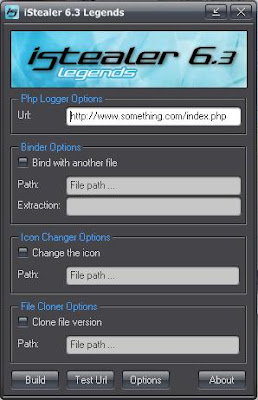
  • Run the iStealer6.3Legends.exe file present in iStealer6.3 folder to get something like:
  • email hacking
  • Now, simply fill the following in Istealer: Url: yourdomainname.com/index.php
  • You can bind Istealer to any other file by checking "Bind with another file" and giving file path to bind with. Also, you can use Icon Change to change Istealer file icon. This step is optional but, necessary for hiding password stealer from victim's eyes. You can bind password stealer file with fake error message as I have explained in "Fake Error Message generator" to make it look real.
  • To check whether you have entered right ftp server information, hit "Test Url" and if you have done it right, you will get message "Works perfect!". If it says "Logger not found, check the Url", you have entered something wrong... just check it again.
  • When you've done all above steps, simply hit on "Build" and save the password stealer file as you want.
  • You can also use Crypter to avoid antivirus detection.
CONGRATS ! Your server is now ready !! Now, simply send this password stealer file to victim and make him run this windows password stealer file on his computer(Social Engineering). After he runs our sent password stealer file on his computer, you will get all passwords and records saved on his computer at your FTP server. That's it. Thus, you can hack email account password using Istealer- the windows password stealer software.

Video Tutorial : How to set up Istealer 6.3 here


Video Tutorial : Installing modded php tutorial here


Remember to crypt this windows Password stealer to make it undetectable by antivirus. If you have any problem in using this Istealer password stealer software to hack email account password, please mention it in comments. Enjoy Istealer to hack email account password...

Enjoy HaCkInG.....
Best Blogger Gadgets